Using a Synthetic Population in Simulations
Specifying a Population and Locations
The epx Python package defines a SynthPop object that allows a user to specify a specific synthetic population (currently, the only option available is "US_2010.v5") and a list of locations to be loaded from that population.
For example, to load Allegheny and Jefferson Counties (in Pennsylvania) from the US 2010 synthetic population, you would create the following SynthPop object:
To specify a single location, you would still use a list–one that contains a single entry.
This object is passed as an argument when constructing a ModelConfig object as part of configuring a job.
Selecting Attributes
Attribute Encodings
Race
The numeric values of racial codes are as follows:
| Racial Numeric Code | Racial Text Code |
|---|---|
0 |
unknown_race |
1 |
white |
2 |
african_american |
3 |
american_indian |
4 |
alaska_native |
5 |
tribal |
6 |
asian |
7 |
hawaiian_native |
8 |
other_race |
9 |
multiple_race |
Sex
The numeric values of sex codes are as follows:
| Sex Numeric Code | Sex Text Code |
|---|---|
0 |
female |
1 |
male |
Using the Synthetic Population in Tableau
Connecting Tableau to the SynthPop Database
- Select the
Exploreoption on the left hand navigation panel. - Navigate to the folder in which you would like to save the database connection.
- Select the
Published Data Sourcefrom theNewdropdown menu in the top left of the window.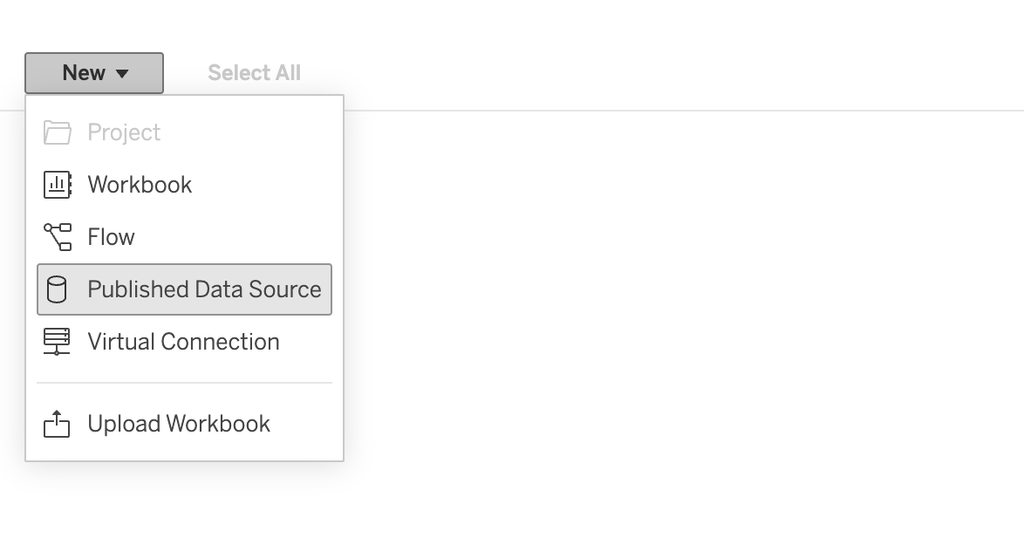 This will open a window with a tab called
 Connectors.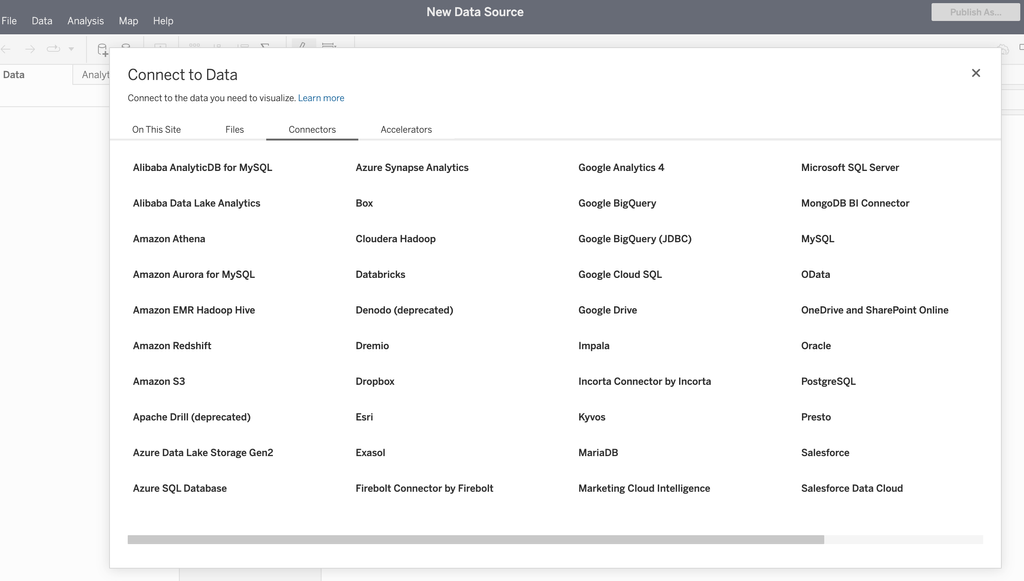
- Select
PostgreSQLfrom theConnectorstab. - Configure your database connection by providing values for the server, port, and database, as well as your credentials (username and password). Once your credentials are verified, you will be able to view the tables of the database in the left pane. At this point, you may publish your data source to save your connection to the database.
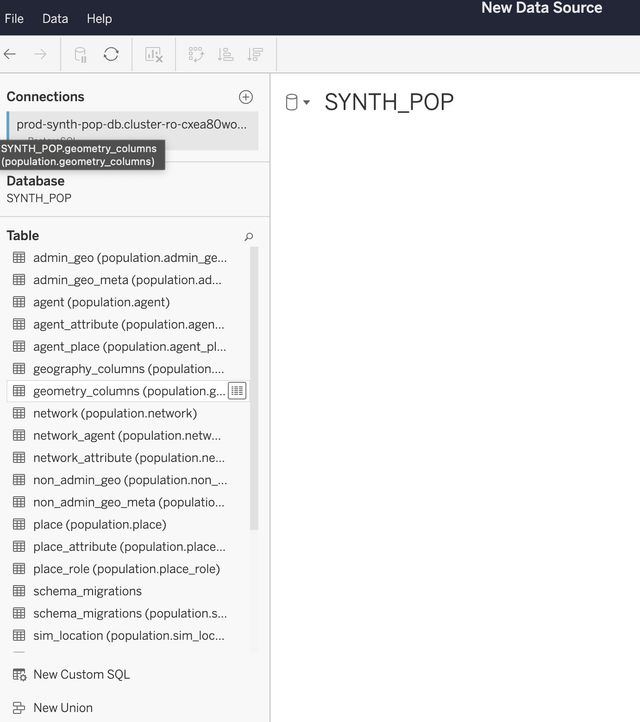
Querying the SynthPop Database and Creating a Workbook
In order to create a workbook after connecting to the database, you wull need to specify which data you want to retrieve.
- To pull data from the database, double click the
New Custom SQLoption below the list of database tables in the left pane. - Enter your SQL code in this dialogue box, including any query parameters you would like to use in your notebook. Then, select
Ok. - Select the
Update Nowoption in the bottom right pane to see a sample of the results from your SQL query. If you are satisfied with the sample results, clickPublish Asin the top right of the window.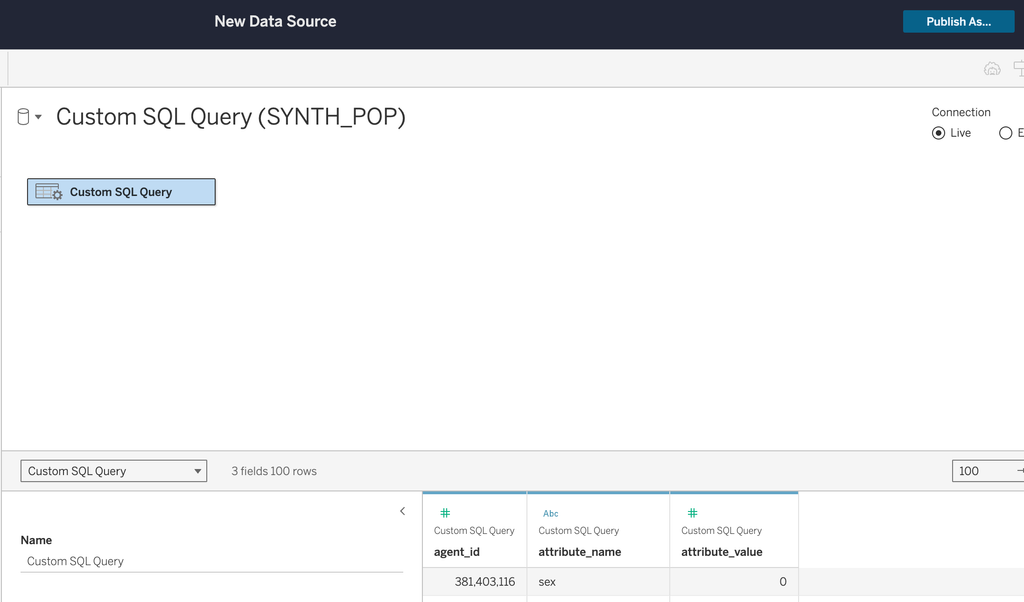
- To finish publishing your DB connection and run the query, provide a name and select a folder location for the data, then navigate to the selected folder. Note: The first Tableau design interface you see after publishing is a scratchpad associated with the new data source. This is intended for testing the output of your connection; work should be saved there.
- Once you navigate to the folder location containing the data, select
…and thenNew Workbook. You will be prompted to renter your database credentials (not your Tableau credentials). - Your workbook now contains the results of the SQL query. You can drag and drop variables to create visualizations before publishing this workbook for others to see! Note: If you used a parameterized query, you will need to set the value of your parameter(s) before your results data can be pulled into the workbook.